
Learn how to draw a great looking Neuron Diagram with easy drawing instructions and video tutorial.
By following the simple steps, you too can easily draw a perfect Neuron Diagram.
Step-by-Step Instructions for Drawing a Neuron Diagram
How to Draw a Great Looking Neuron Diagram for Kids and Beginners - Step 1
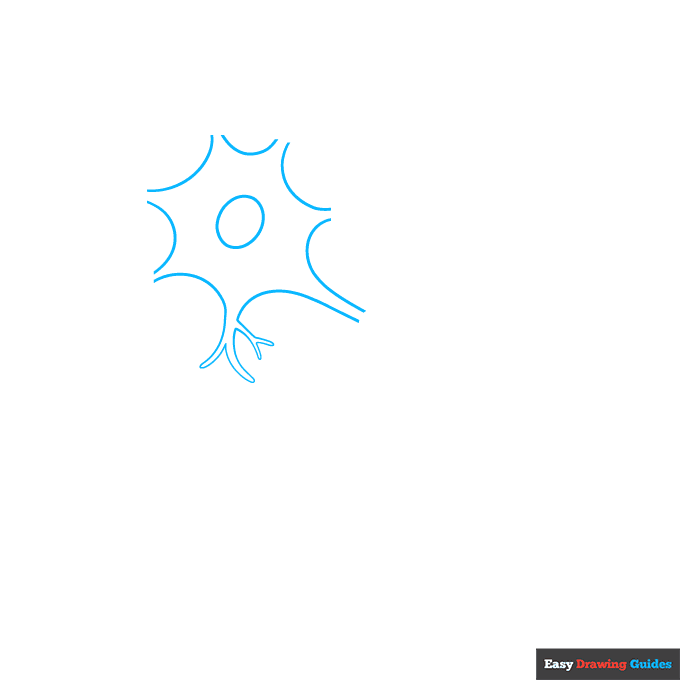
1. Begin the neuron diagram outline by drawing a circle. Begin by drawing an oval. This is the nucleus of the cell. Around it, draw curved lines that don't quite meet one another in a sunburst pattern.
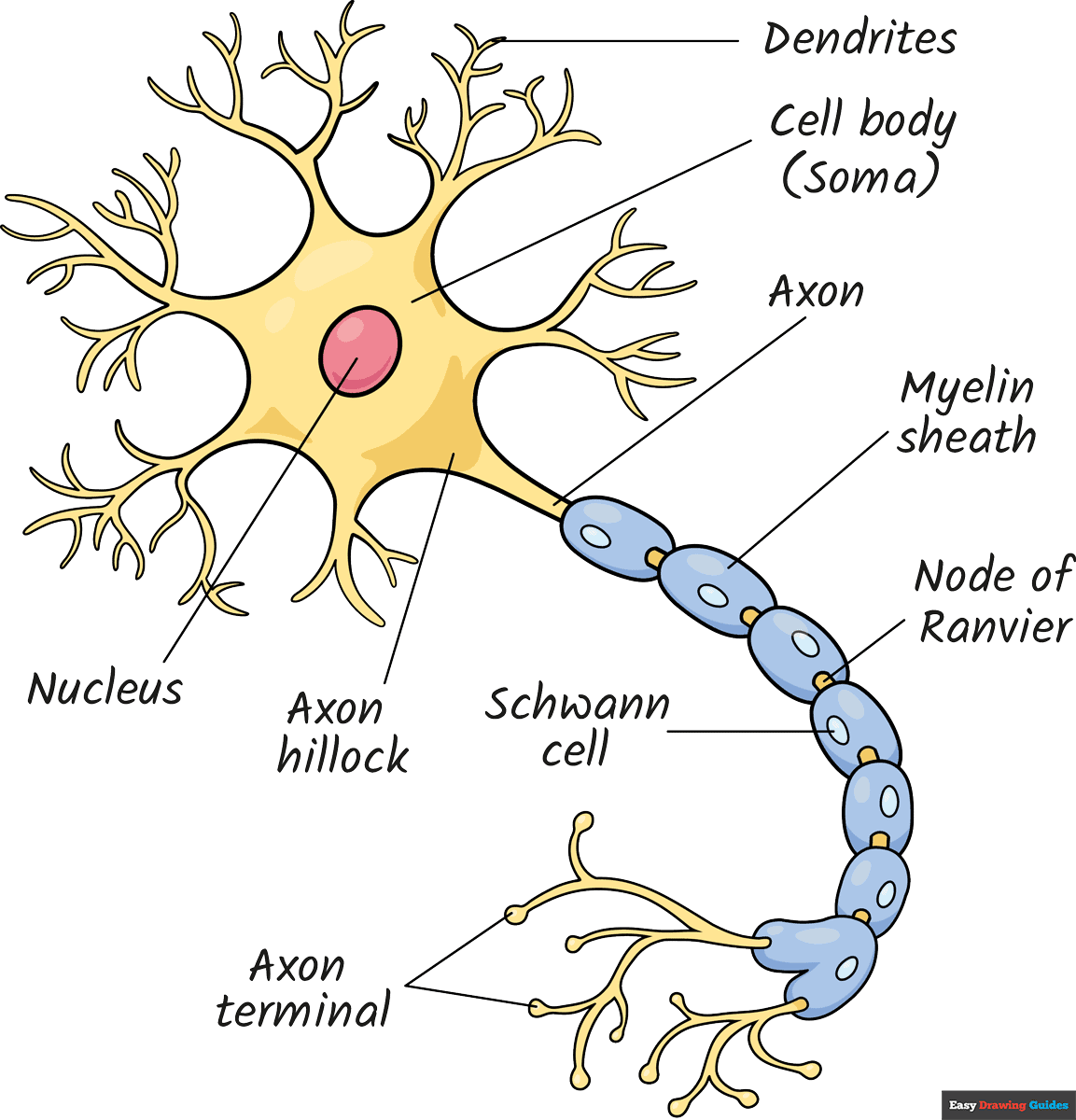
This outlines the cell body or soma. Then, draw "Y" shaped branches to close one of the openings. These are the dendrites that nerve cells use to communicate with other nerves.
Drawing Step 2
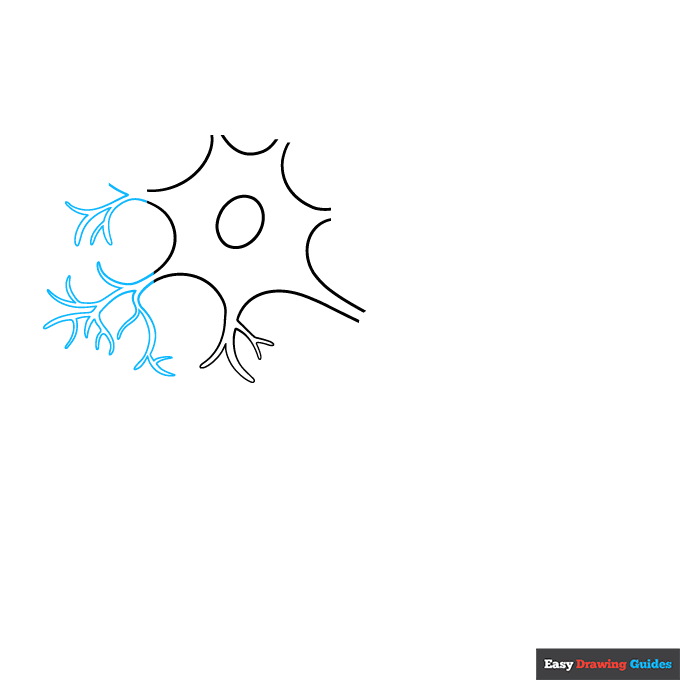
2. Continue to draw branching dendrites to fill and connect the spaces of the soma. Use curved lines that meet at points and branch into "Y" shapes.
Unlock AD FREE and PRINTABLE drawing and coloring tutorials
- 1,900+ drawing & coloring PDFs
- 50+ ebooks
- Ad-free website
Drawing Step 3
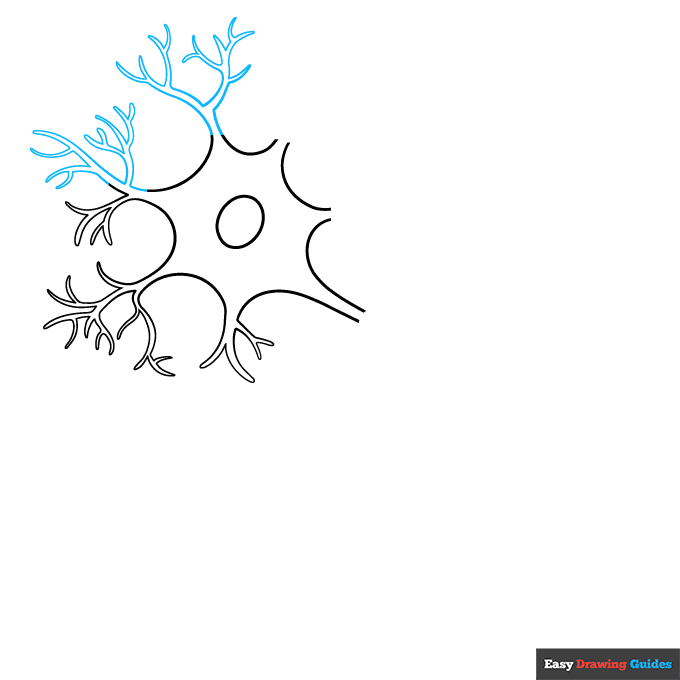
3. Continue to draw the branching, "Y" shaped dendrites to close the openings of the soma.
Drawing Step 4
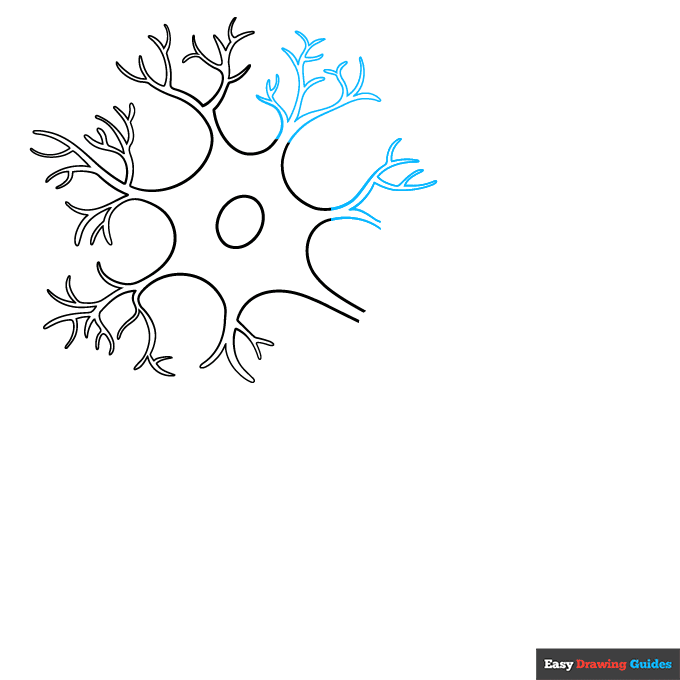
4. Continue to draw the branching, "Y" shaped dendrites to close the openings of the soma.
Drawing Step 5
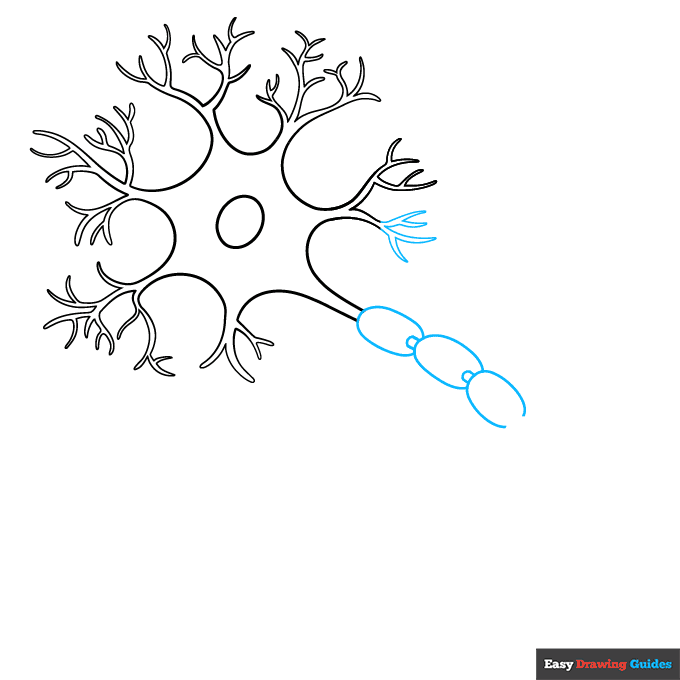
5. Finish drawing the dendrites. Then draw a series of overlapping ovals.
Where each oval meets the next, enclose a small partial oval. The large ovals are the protective myelin sheath, and the small ones are nodes of Ranvier.
Drawing Step 6
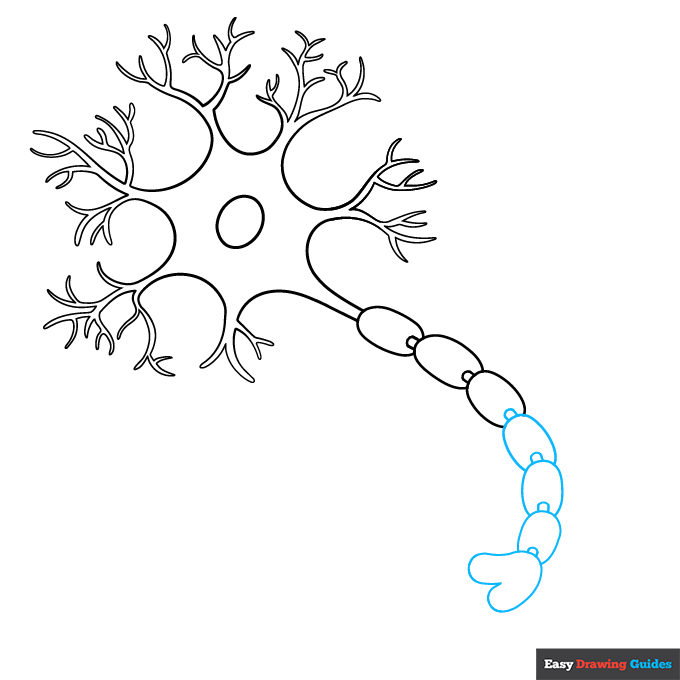
6. Continue drawing the overlapping ovals. At the end, draw a rounded heart shape.
Drawing Step 7
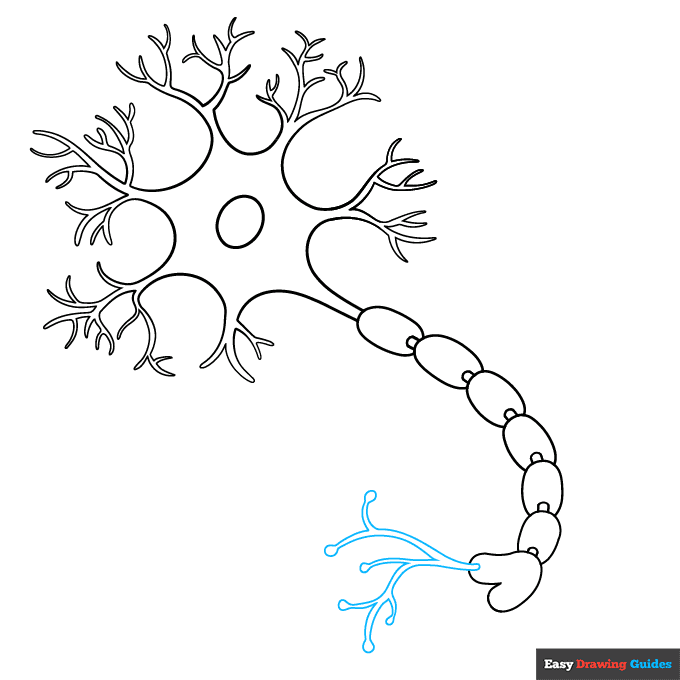
7. From one lobe of the heart, draw branching, "Y" shaped structures, erasing as necessary. Enclose the ends of the lines with small circles.
Add More Details to Your Neuron Diagram Picture - Step 8
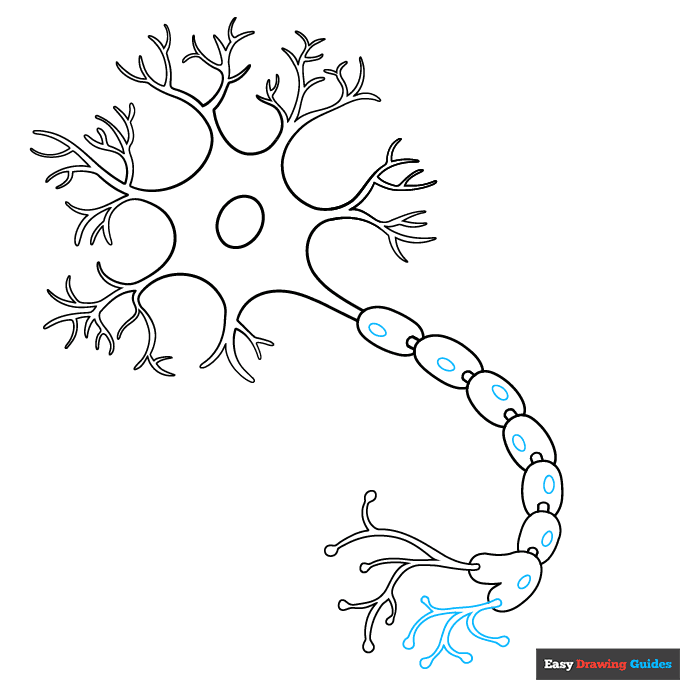
8. Draw branching structures from the opposite lobe, enclosing the ends of the lines with small circles.
Then draw a small oval inside each oval of the myelin sheath. These are called Schwann cells; they protect the nerve cells and create the myelin sheath.
Complete the Outline of Your Neuron Diagram Drawing - Step 9
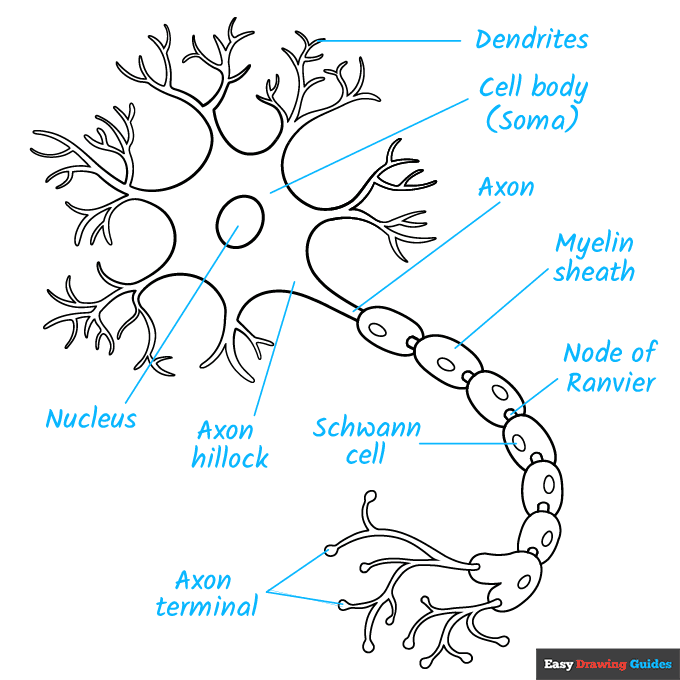
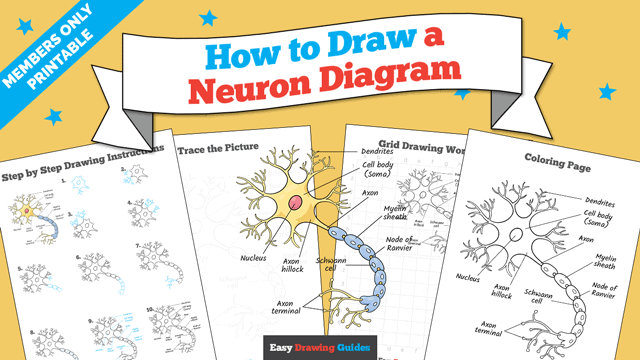
9. Label the parts of the neuron.
Working clockwise, label the dendrites, cell body or soma, axon, myelin sheath, node of Ranvier, axon terminal, Schwann cell, axon hillock, and nucleus.
Draw straight lines from the vocabulary terms to the parts they describe.
Color Your Neuron Diagram Drawing
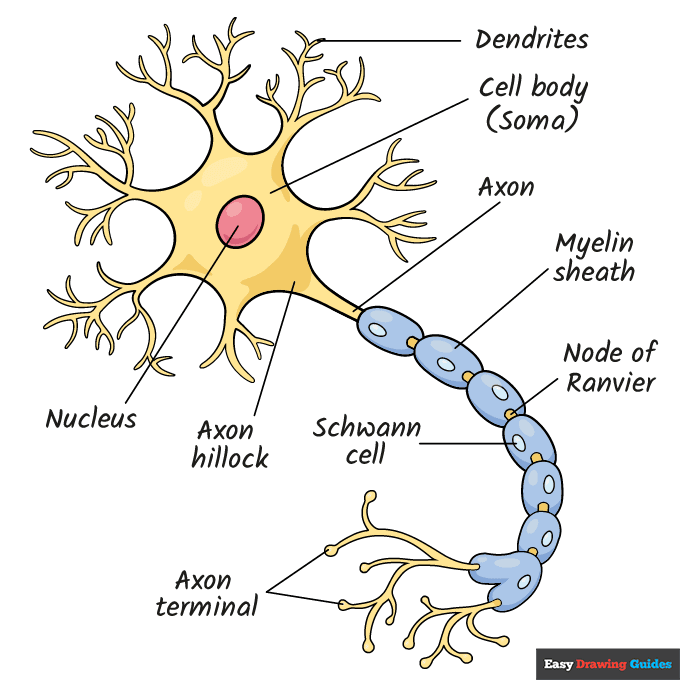
Your neuron diagram outline is now complete. Color your drawing. Neurons are a pale greyish color; that's why the brain is called "grey matter."
But for the sake of your diagram, you can use lots of different colors to make the parts easy to see.
Watch 'How to Draw a Neuron Diagram' Video Tutorial
Learn More About The Neuron Diagram Drawing
Nerve cells or neurons are very important. You're using them right now as you take in information with your eyes and interpret it in your brain.
You can learn how to draw a neuron diagram with the help of this step-by-step guide.
Neurons are very specialized cells and they look different from other animal cells.
On the inside, however, they have the same organelles needed to sustain life. Draw this animal cell diagram to learn about organelles.
The neuron's long axon looks a bit like the flagellum in this bacteria drawing.
Unlike bacteria, nerve cells do not use this extension to move around. Instead, it conducts the chemical and electrical impulses that nerves use to talk to one another.
Want to learn more about the brain? Check out this brain diagram drawing.
Neuron Diagram Drawing Tutorial - Easy & Fun Printable Pages
Join now and get immediate access to thousands of printable drawing instruction and practice pages!
Learn how to get access to thousands of printable pages!

MEMBER TROUBLESHOOTING
Still seeing ads or not being able to download the PDF?
First, check that you're logged in. You can log in on the member login page.
If you're still not able to download the PDF, the likely solution is to reload the page.
You can do this by clicking the browser reload button.
It is a circular arrow-shaped icon at the top of the browser window, typically found in the upper-left side (you can also use keyboard shortcuts: Ctrl+R on PC and Command+R on Mac).