
Learn how to draw a great looking Thank You Greeting Card with easy drawing instructions and video tutorial.
By following the simple steps, you too can easily draw a perfect Thank You Greeting Card.
Step-by-Step Instructions for Drawing a Thank You Greeting Card

How to Draw a Great Looking Thank You Greeting Card for Kids and Beginners - Step 1

1. Begin the thank you greeting card outline by drawing a cute bunny. Draw two partial ovals for eyes, each with two small ovals inside. Shade the ovals. Between them, enclose a small, round nose. Use curved lines to draw the mouth and eyebrows.
Drawing Step 2
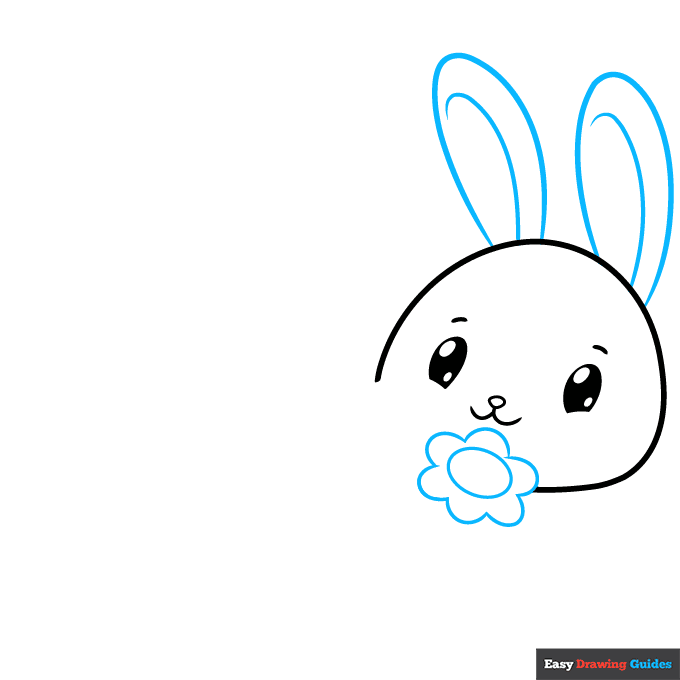
2. Draw the rabbit's long ears. Extend curved lines from the top of the head and double them back on themselves. Use curved lines to detail inside the ears. Then, draw a flower at the base of the head. Use an oval for the flower's center and a series of connected, curved lines for the petals.
Unlock AD FREE and PRINTABLE drawing and coloring tutorials
- 1,900+ drawing & coloring PDFs
- 50+ ebooks
- Ad-free website
Drawing Step 3
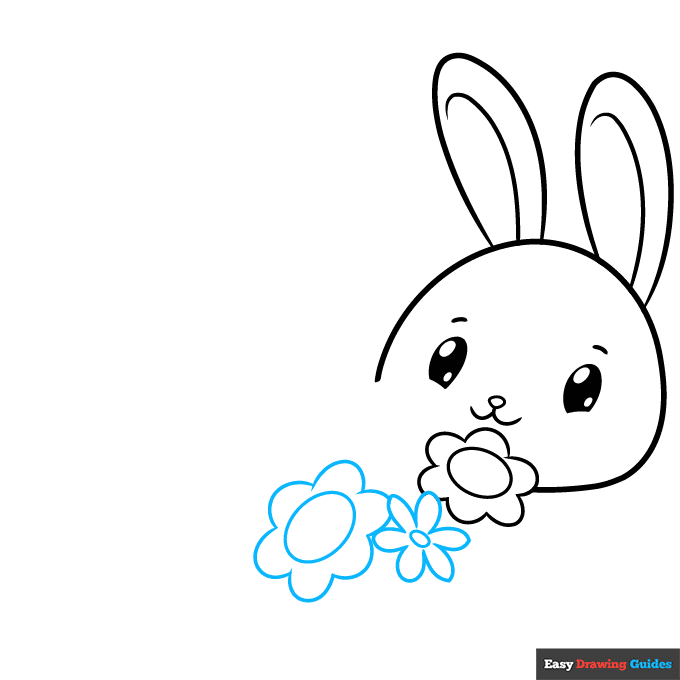
3. Draw more daisy-like flowers. Draw one like the first - a large oval-shaped center and small petals - and another with a small center and long, "U" shaped petals.
Drawing Step 4
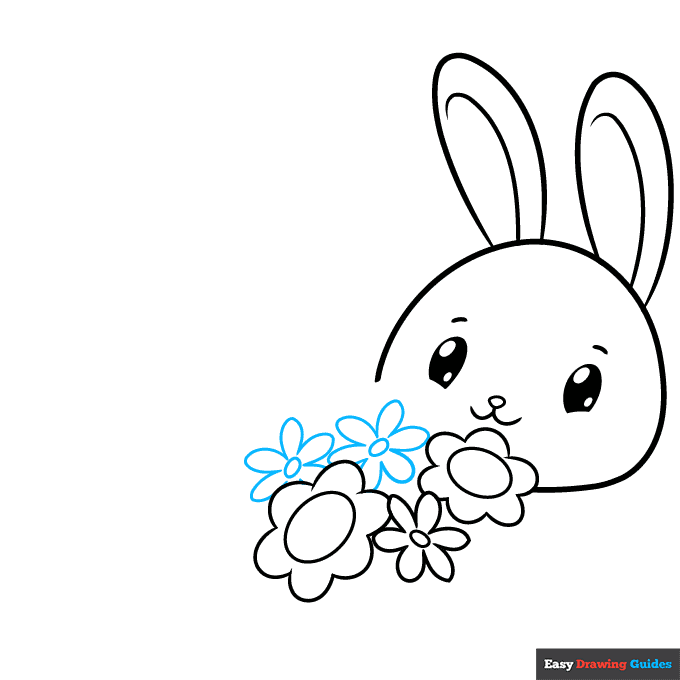
4. Draw two more flowers. Use small ovals for the centers and give them six long, "U" shaped petals each.
Drawing Step 5
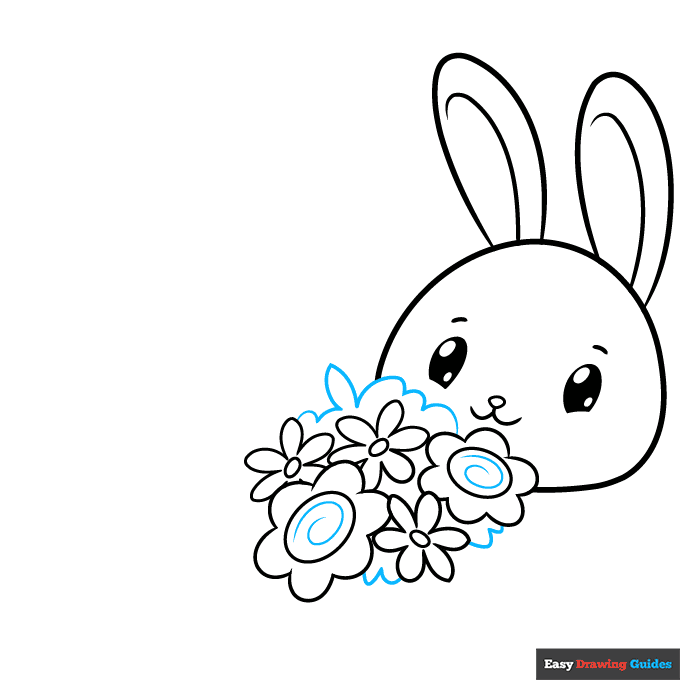
5. Draw spiral-shaped lines in the centers of the large-centered flowers. Then complete the bouquet by using a series of connected curved lines to outline to foliage.
Drawing Step 6
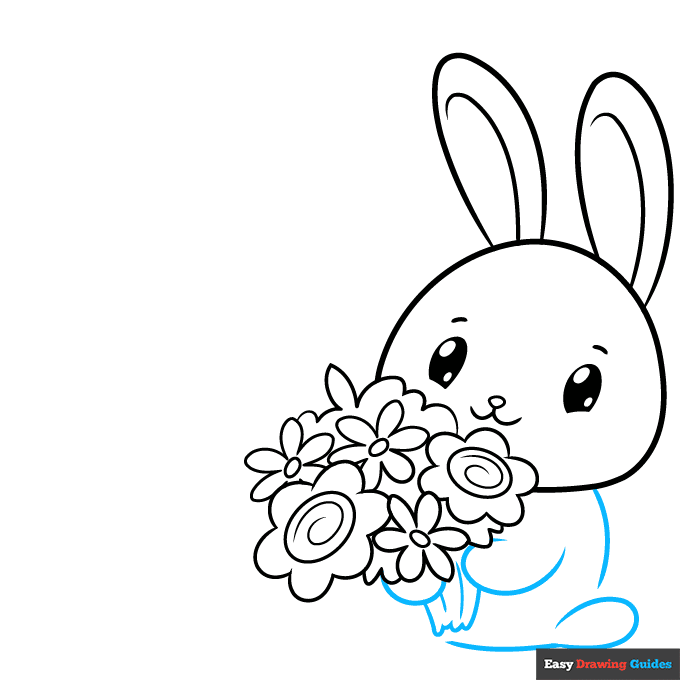
6. Next, draw the bunny's body. Use curved lines for the back, front paws, bottom of the body, and rear paw. Also, enclose the stems of the flowers with a series of short, connecting lines and detail the bunch with curved lines.
Drawing Step 7

7. Finish outlining the bunny's body, using curved lines for the remaining foot and the tail. Detail the paws with two short, curved lines each. Then, write the words "Thank You" in bold cursive letters beside the bunny.
Add More Details to Your Thank You Greeting Card Picture - Step 8

8. Write the words "very much" in smaller cursive letters underneath the words "Thank You." Use curved lines to draw a partial daisy flower at the corner of the card. Draw two more partial flowers at the top of the card.
Complete the Outline of Your Thank You Greeting Card Drawing - Step 9

9. Use circles and curved lines to draw daisies of different sizes all over the card.
Color Your Thank You Greeting Card Drawing

Your thank you greeting card outline is now complete. Color your card. We've used pastel tones like pink and yellow in our example, but you can feel free to get creative.
Watch 'How to Draw a Thank You Greeting Card' Video Tutorial
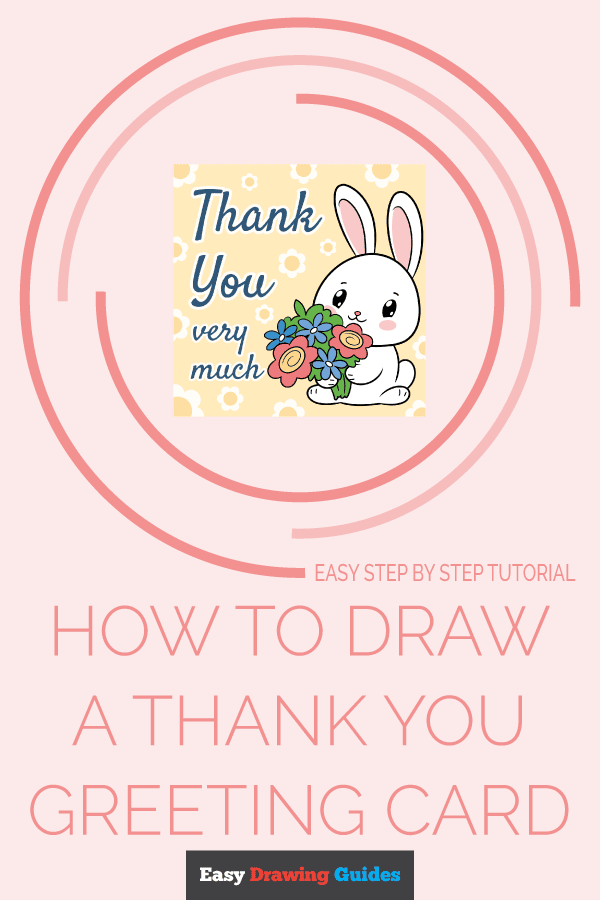
Click HERE to save the tutorial to Pinterest!
Learn More About The Thank You Greeting Card Drawing
Have you ever wanted to say thank you but didn't know how? This easy, step-by-step thank you greeting card drawing can help.
When someone does something nice for you, you want to do something nice in return. What could you do? You could buy them flowers or a card, but those things cost money. Or, you could make them a card instead - one that includes flowers!
This card features a cute kawaii bunny drawing with blushing cheeks. It is holding a flower bouquet drawing, with additional flowers raining down around it. These visuals evoke the positive feelings you wish the card to convey.
Thank-you cards are just one type of greeting card. What other cards could you design using our drawing guides?
Thank You Greeting Card Drawing Tutorial - Easy & Fun Printable Pages
Join now and get immediate access to thousands of printable drawing instruction and practice pages!
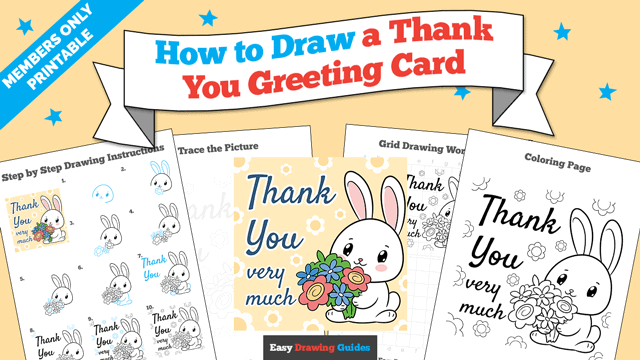
Learn how to get access to thousands of printable pages!
MEMBER TROUBLESHOOTING
Still seeing ads or not being able to download the PDF?
First, check that you're logged in. You can log in on the member login page.
If you're still not able to download the PDF, the likely solution is to reload the page.
You can do this by clicking the browser reload button.
It is a circular arrow-shaped icon at the top of the browser window, typically found in the upper-left side (you can also use keyboard shortcuts: Ctrl+R on PC and Command+R on Mac).