
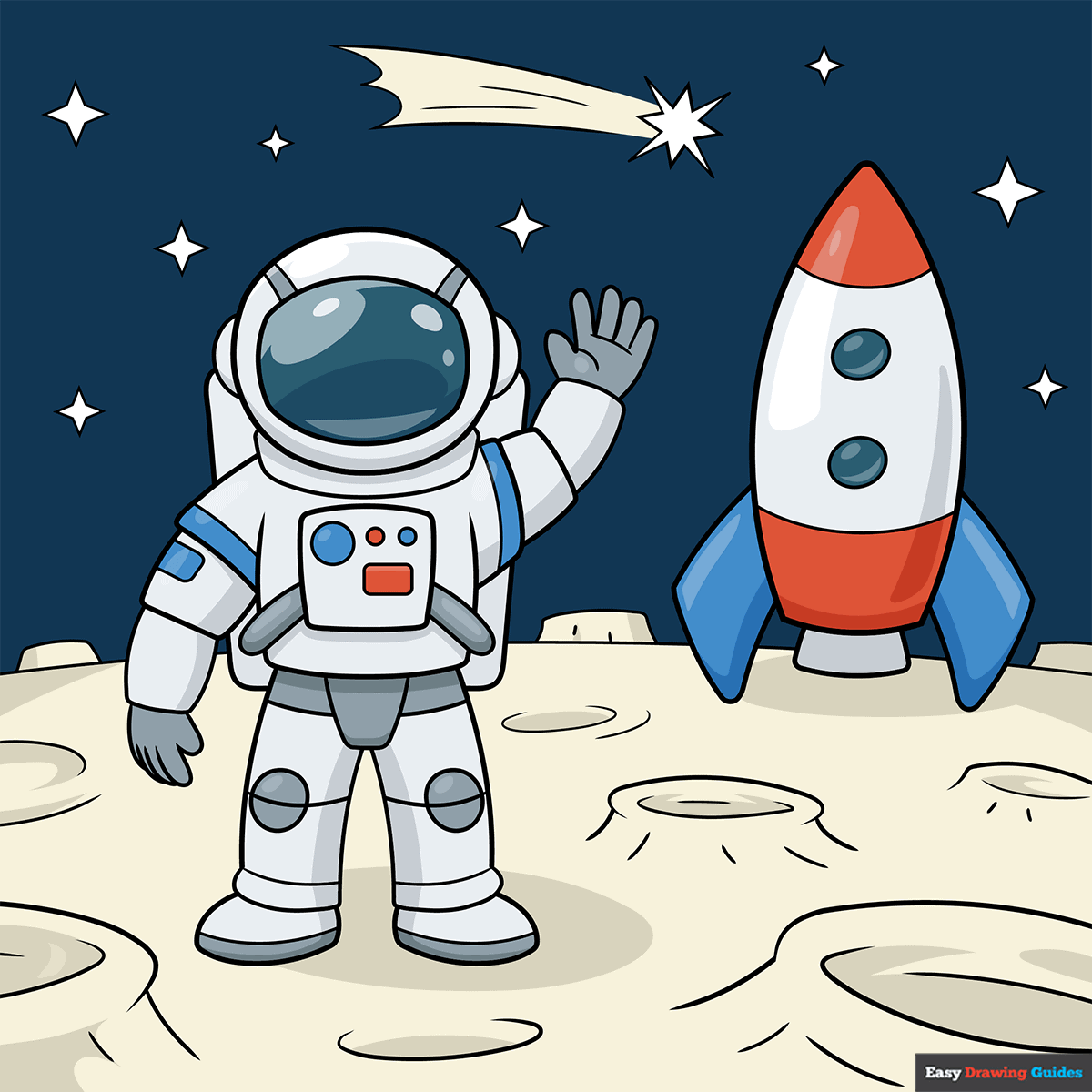
Learn how to draw a great looking Astronaut Moon Walk with easy drawing instructions and video tutorial.
By following the simple steps, you too can easily draw a perfect Astronaut Moon Walk.
Step-by-Step Instructions for Drawing an Astronaut Moon Walk
How to Draw a Great Looking Astronaut Moon Walk for Kids and Beginners - Step 1
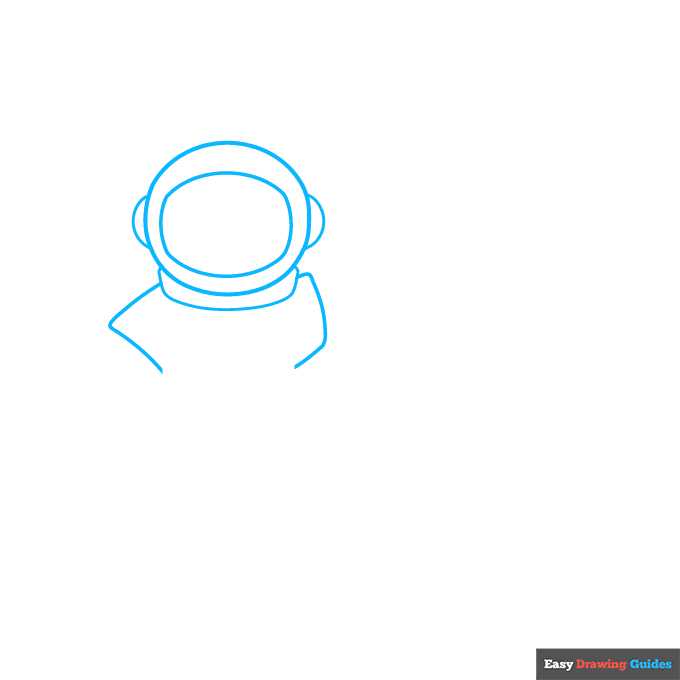
1. Sketch an oval on the left side of the page, then draw a rectangle with rounded edges inside this shape. Add a semi-oval on both sides of the oval. Draw a thin, curved rectangle underneath, then sketch diagonal lines below the helmet.
Drawing Step 2
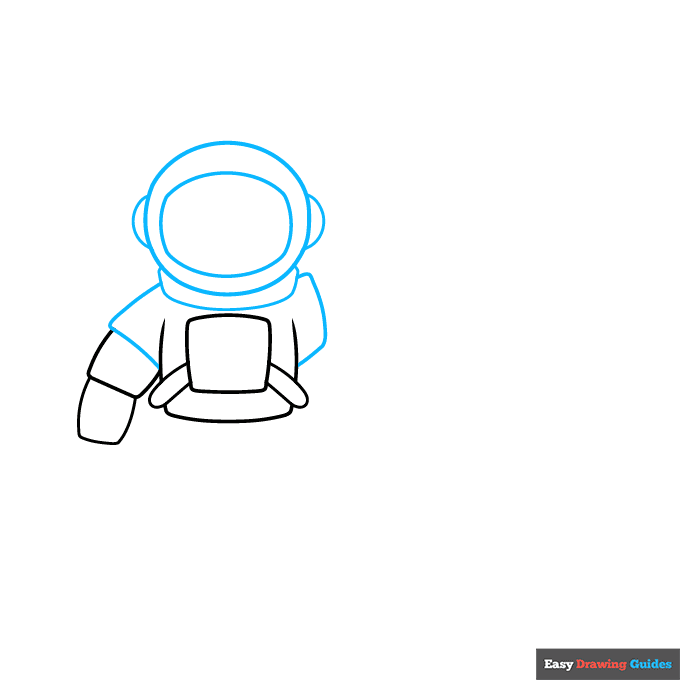
2. Draw a rectangle with two cylinders attached to it, then sketch another rectangle behind this shape. Add two smaller rectangles on the left.
Unlock AD FREE and PRINTABLE drawing and coloring tutorials
- 1,900+ drawing & coloring PDFs
- 50+ ebooks
- Ad-free website
Drawing Step 3
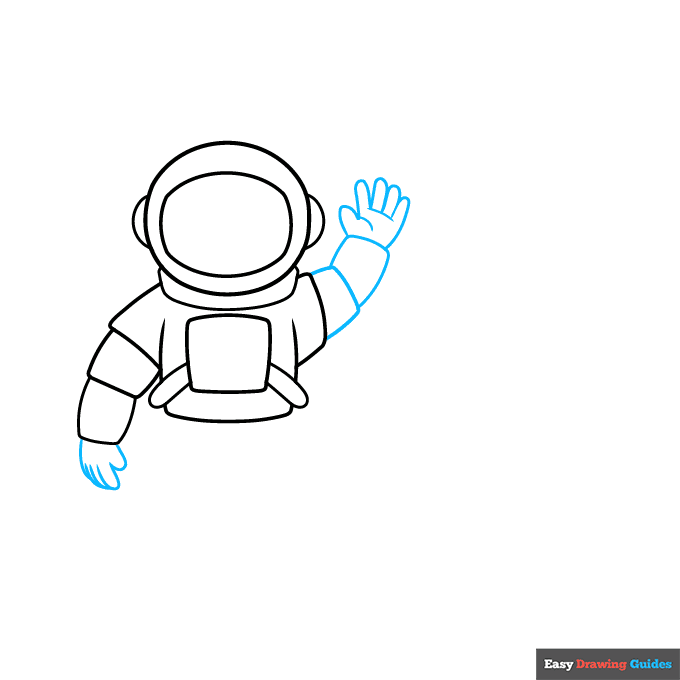
3. For the left hand, sketch five hot dog shapes that overlap each other. On the right, sketch two rectangles, then draw five more hot dog shapes and add two dashes on the palm.
Drawing Step 4
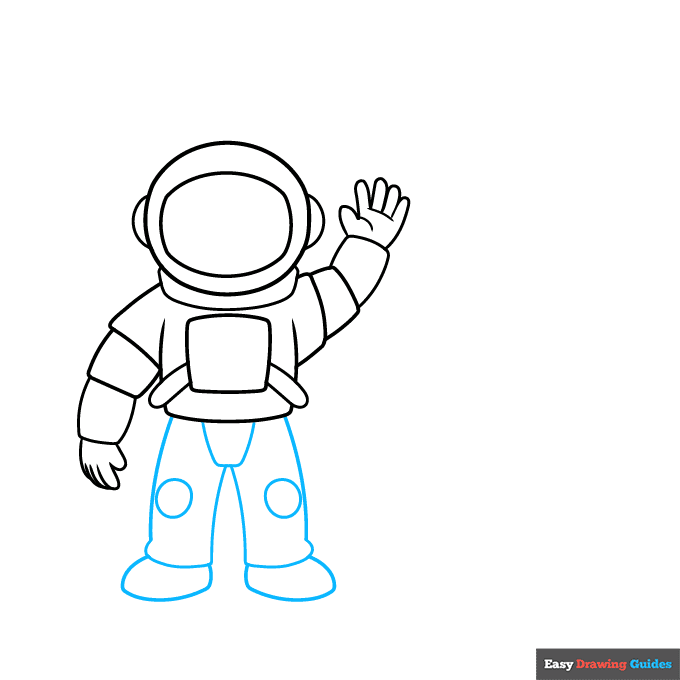
4. Underneath the body, sketch two diagonal lines and connect them with a straight line. Outline the legs with diagonal curves and horizontal lines. Add a circle on each knee, then use oblong ovals for the shoes.
Drawing Step 5
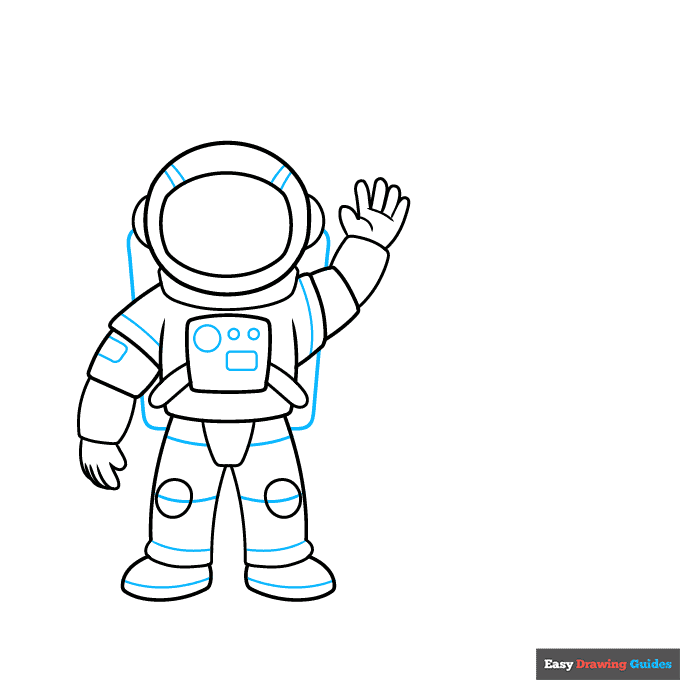
5. Draw a rectangle behind your astronaut, then add circles, rectangles and curves throughout the body for added detail.
Drawing Step 6
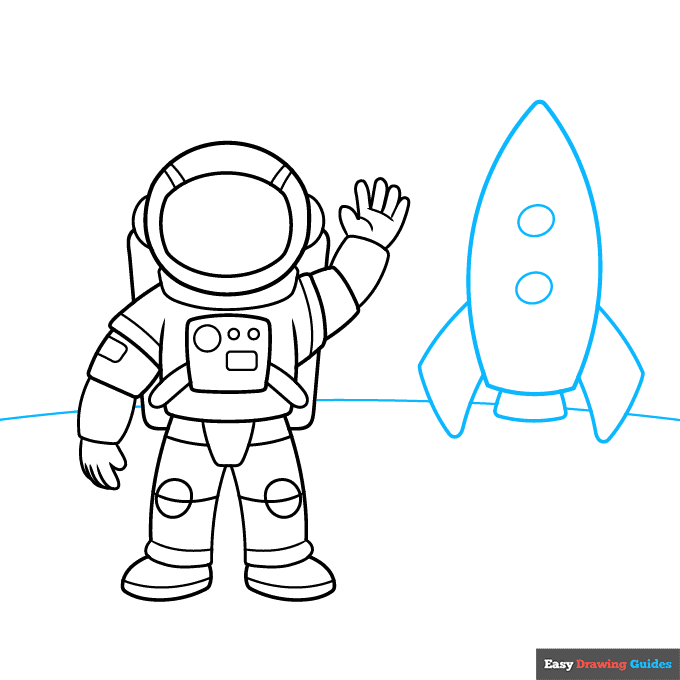
6. For the rocket, sketch a tall, rounded triangle with a flat bottom, then sketch two diagonal lines underneath and connect them with a curve. Outline the flaps with drooping oblong rectangles. Add two circles inside the rocket.
In the background, draw a curve to represent the horizon.
Drawing Step 7
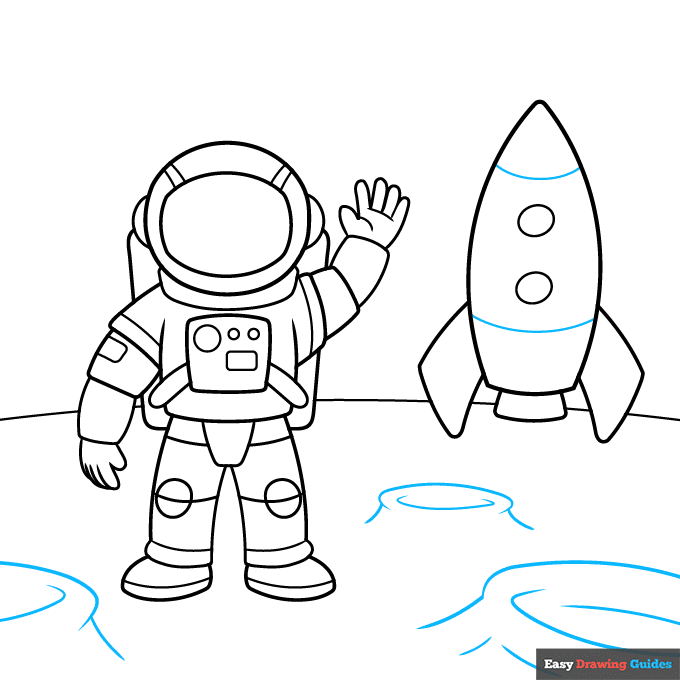
7. Add two curves inside the rocket. For each crater, draw a semicircle with a curve inside it, then sketch curves on the sides. Add more lines to the large crater on the right.
Add More Details to Your Astronaut Moon Walk Picture - Step 8
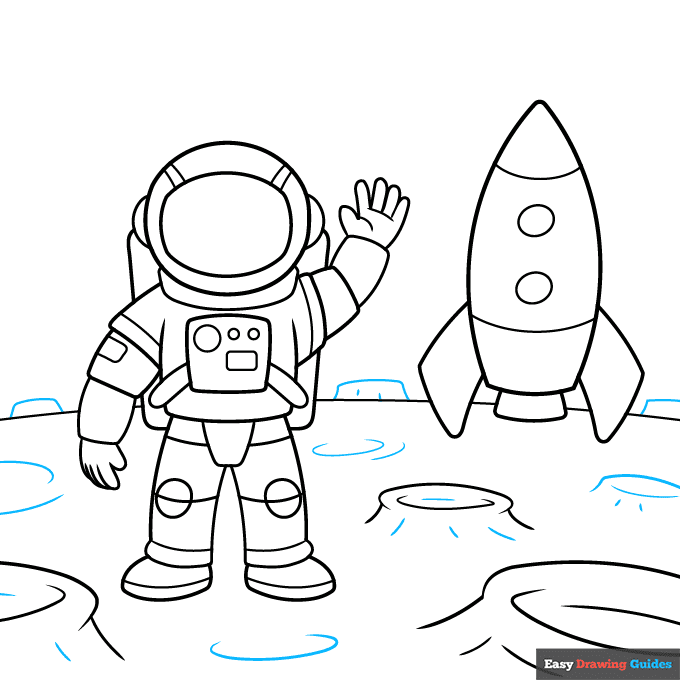
8. Sketch more curves and dashes across the surface of the moon, then add three curvy rectangles in the back. Draw two dashes on the middle rectangle.
Complete the Outline of Your Astronaut Moon Walk Drawing - Step 9
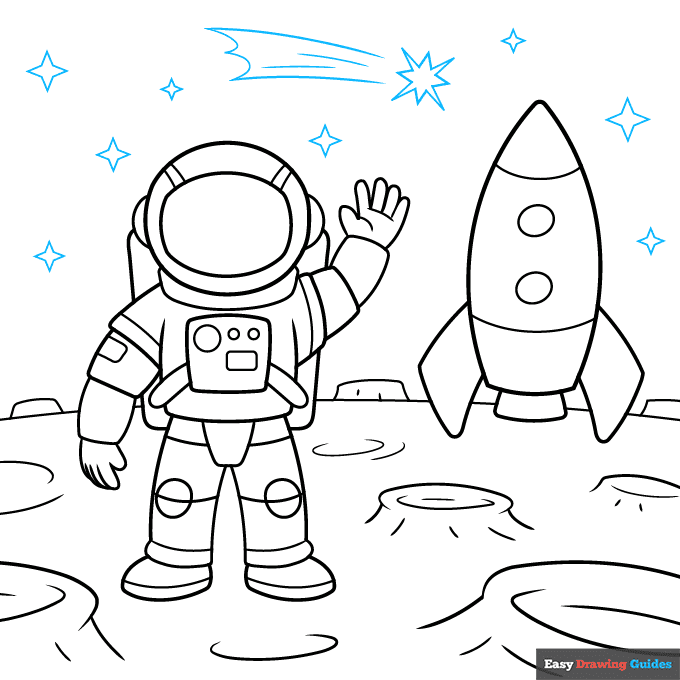
9. Use straight lines to draw the stars in the sky. Add curvy motion lines behind the shooting star. Outline your astronaut moonwalk drawing with black ink.
Color Your Astronaut Moon Walk Drawing

Color your easy astronaut moonwalk with grey for the moon and stars, dark blue for the sky, and red, grey and blue for the rocket. Add grey shadows to the white parts of the astronaut's suit, then use blue, red and grey for the details.
Watch 'How to Draw an Astronaut Moon Walk' Video Tutorial
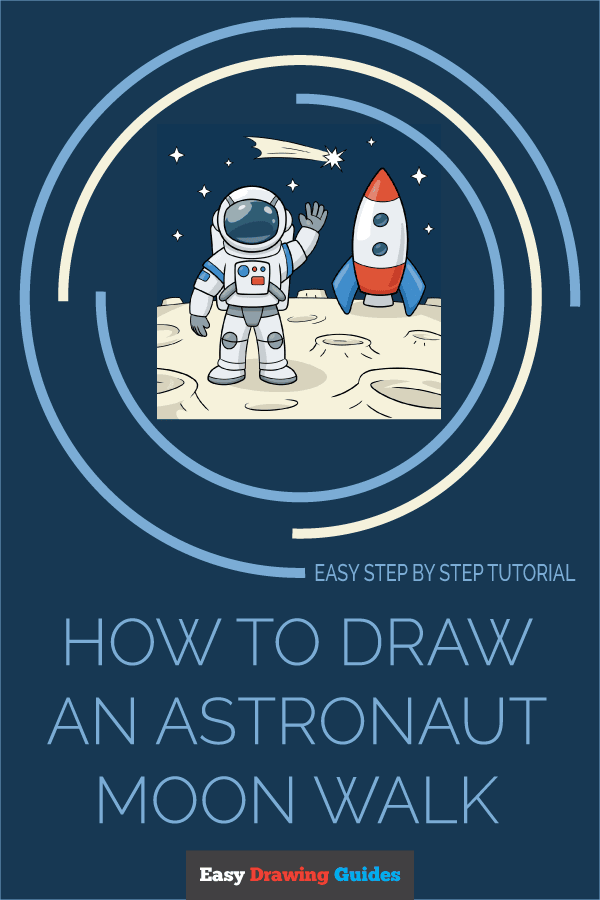
Click HERE to save the tutorial to Pinterest!
Learn More About The Astronaut Moon Walk Drawing
Astronauts visit space and perform research to learn more about our universe. Learn how to draw an astronaut moon walk with a shooting star in the background.
Like Neil Armstrong and Buzz Aldrin, the astronaut in this drawing has landed on the moon. While your astronaut has a white suit, you won't leave it plain. Instead, you'll add grey shadows to make the suit look three-dimensional.
The stars in the background have four sharp points. You can draw these stars by grabbing a ruler and sketching four straight triangles that form a diamond shape. Once you're confident, you can try drawing the stars freehand.
Now that you've mastered this guide, check out this step-by-step space shuttle drawing guide or learn how to draw a cartoon astronaut.
Astronaut Moon Walk Drawing Tutorial - Easy & Fun Printable Pages
Join now and get immediate access to thousands of printable drawing instruction and practice pages!
Learn how to get access to thousands of printable pages!

MEMBER TROUBLESHOOTING
Still seeing ads or not being able to download the PDF?
First, check that you're logged in. You can log in on the member login page.
If you're still not able to download the PDF, the likely solution is to reload the page.
You can do this by clicking the browser reload button.
It is a circular arrow-shaped icon at the top of the browser window, typically found in the upper-left side (you can also use keyboard shortcuts: Ctrl+R on PC and Command+R on Mac).