
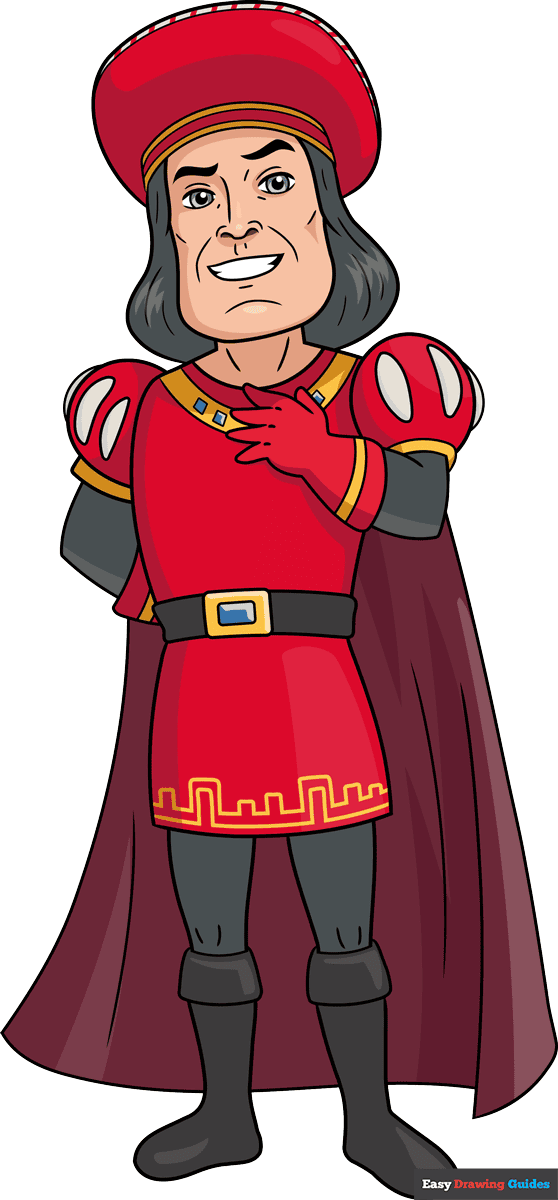
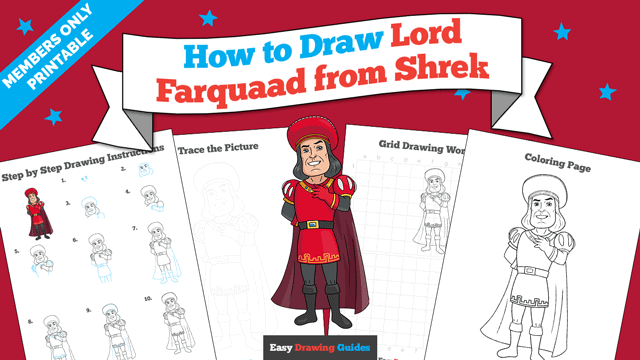
Learn how to draw a great looking Lord Farquaad from Shrek with easy drawing instructions and video tutorial.
By following the simple steps, you too can easily draw a perfect Lord Farquaad from Shrek.
Step-by-Step Instructions for Drawing Lord Farquaad from Shrek
How to Draw a Great Looking Lord Farquaad from Shrek for Kids and Beginners - Step 1
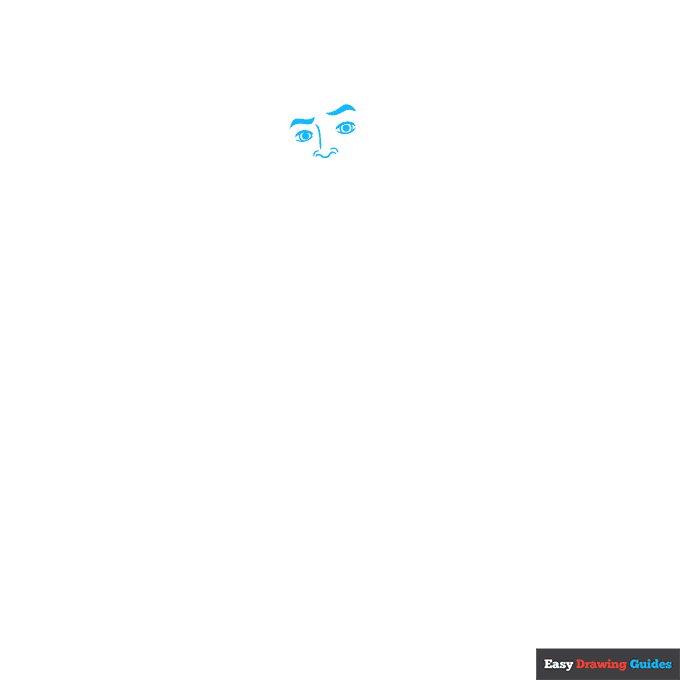
1. Begin the Lord Farquaad from Shrek outline by drawing his face. Use curved lines to sketch the eyes, noting how they don't meet at the corners; the nose, and the double-pointed eyebrows.
Shade the eyebrows, and draw two concentric circles inside each eye. Shade the smaller circles to indicate the pupils.
Drawing Step 2
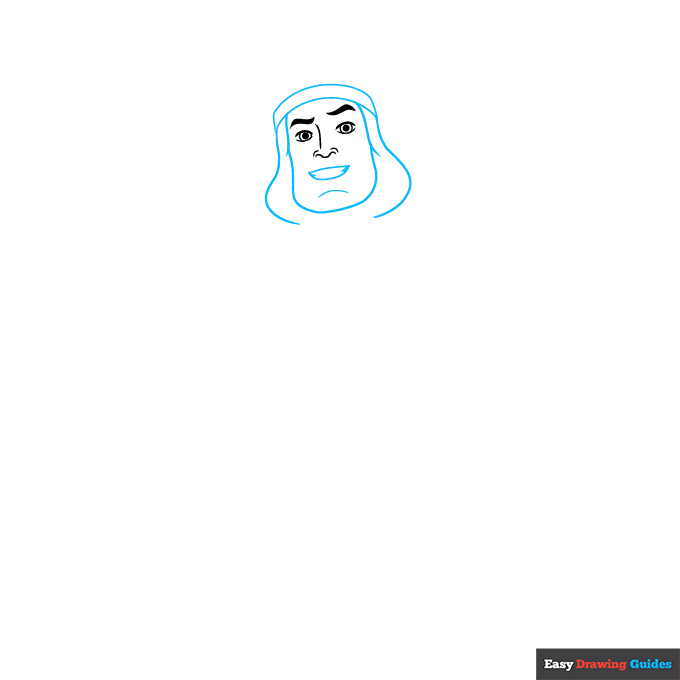
2. Draw two long, curved, parallel lines above the face, allowing them to connect at points on each end. This is the base of Farquaad's hat. Then use long curved lines to sketch his face and hair.
Finally, use shorter lines to draw his mouth, teeth, and chin.
Unlock AD FREE and PRINTABLE drawing and coloring tutorials
- 2,600+ drawing & coloring PDFs
- 50+ ebooks
- Ad-free website
Drawing Step 3
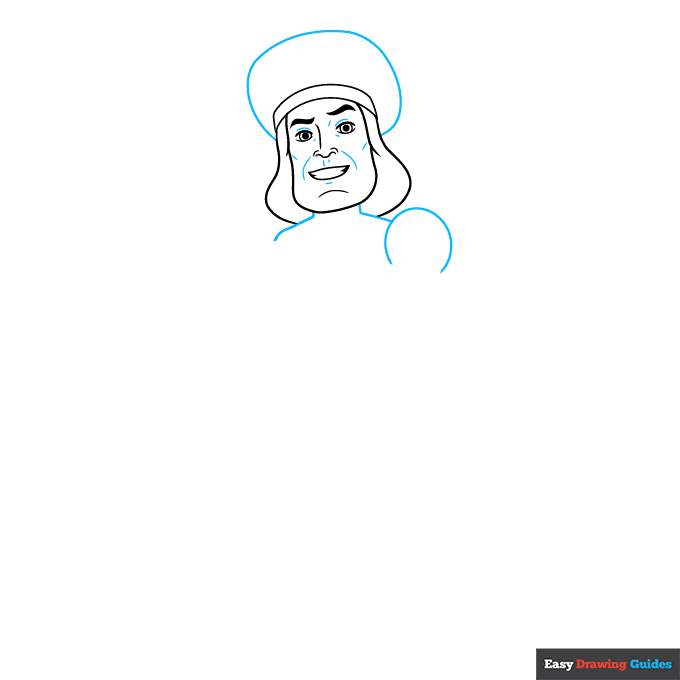
3. Use a long curved line to sketch the round shape of his hat. Then, use shorter lines to contour around the eyes and mouth.
Extend lines below the head to form the neck and shoulders. At the end of one shoulder, draw a partial circle to begin the puff sleeve of his tunic.
Drawing Step 4
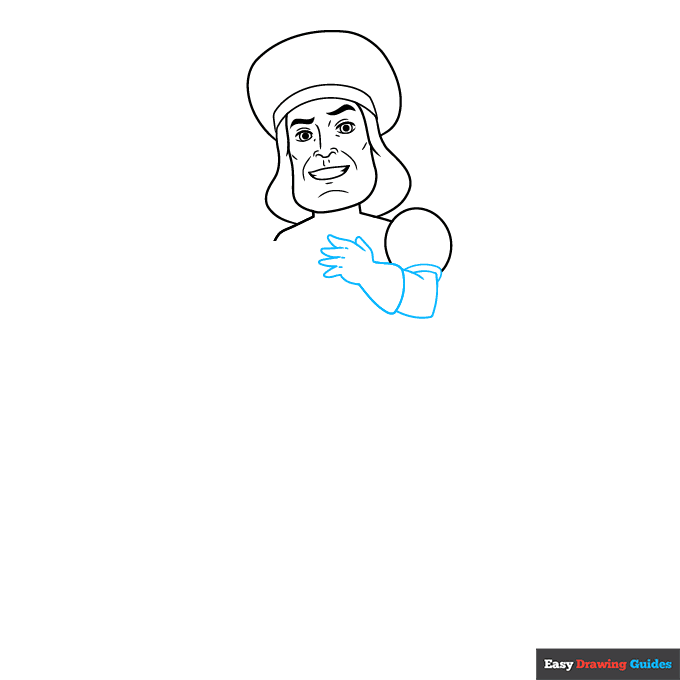
4. Use a series of overlapping curved lines to draw the cuff of the sleeve, the upper and lower arm, and the gloved hand.
Drawing Step 5
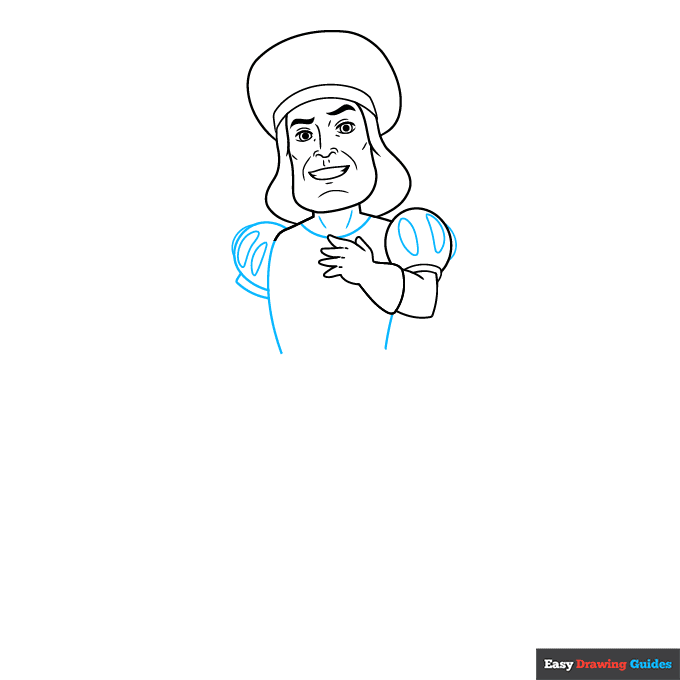
5. Use curved lines for the sides of the torso and the partial circle shape of the remaining puff sleeve.
Draw a curved rectangle for the cuff, and gently pointed shapes to decorate both sleeves. Use curved lines for the neck of the tunic and to contour Farquaad's neck.
Drawing Step 6
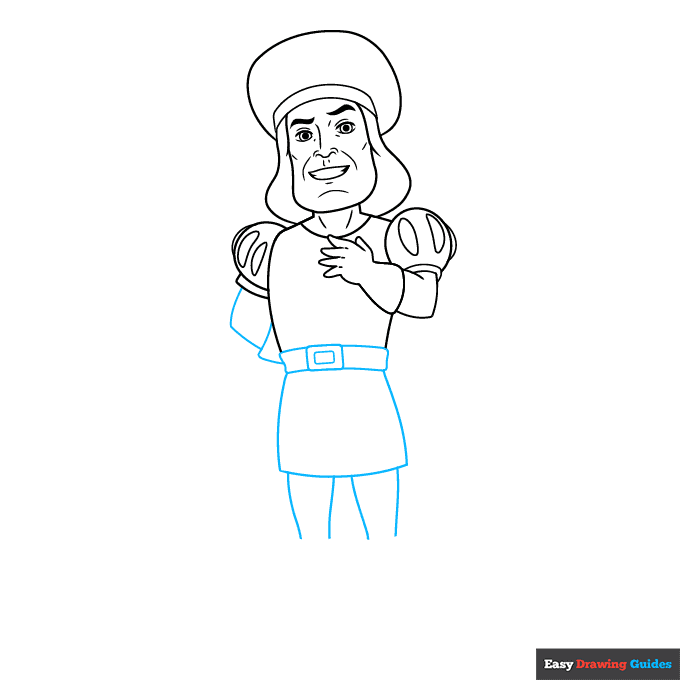
6. Draw a series of rounded rectangles: two for the belt buckle, one on each side of it for the belt, and another below for the skirt of the tunic. Then, use curved lines to sketch the remaining arm behind the back, the cuff of the glove, and the legs.
Drawing Step 7
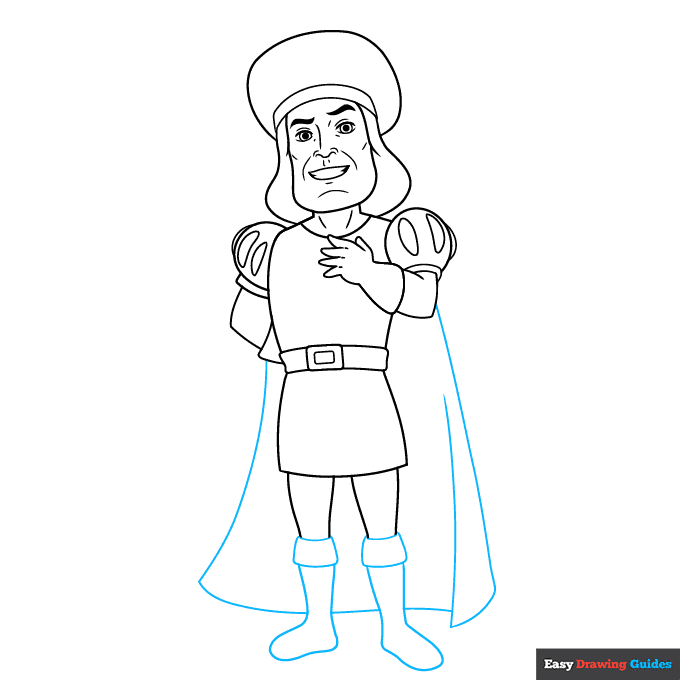
7. Draw curved rectangles at the ends of the legs, forming the tops of the boots. Extend a long curved line from each and double it back on itself to enclose the boots.
Finally, use long lines to enclose the cape. Notice the overlapping lines forming an incomplete triangle on one side, giving the cape a three-dimensional appearance.
Add More Details to Your Lord Farquaad from Shrek Picture - Step 8
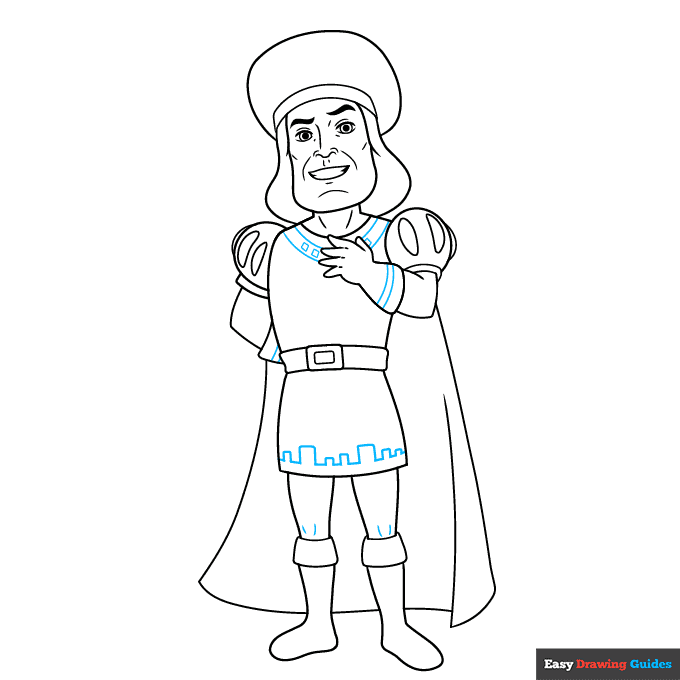
8. Decorate Farquaad's tunic with curved lines, small squares, and straight lines in a rectangle pattern.
Complete the Outline of Your Lord Farquaad from Shrek Drawing - Step 9
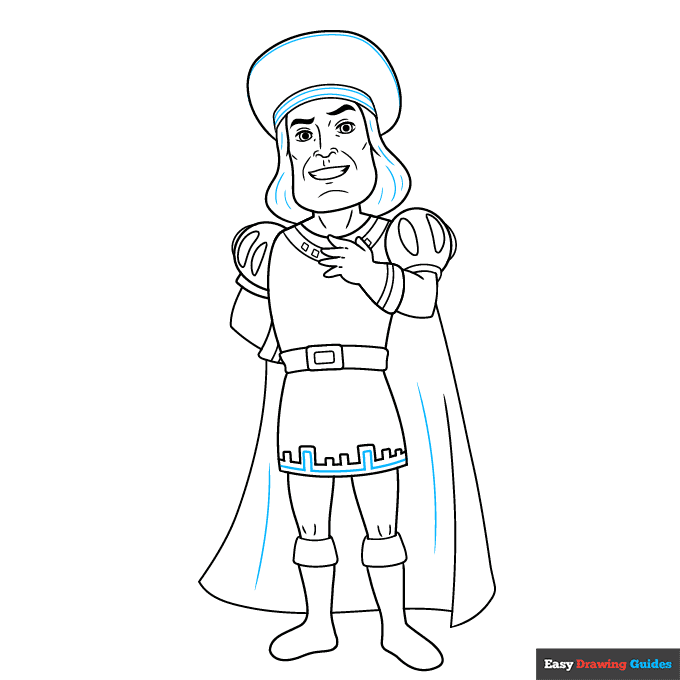
9. Contour the fabric and hair, and detail the hat with curved lines.
Color Your Lord Farquaad from Shrek Drawing
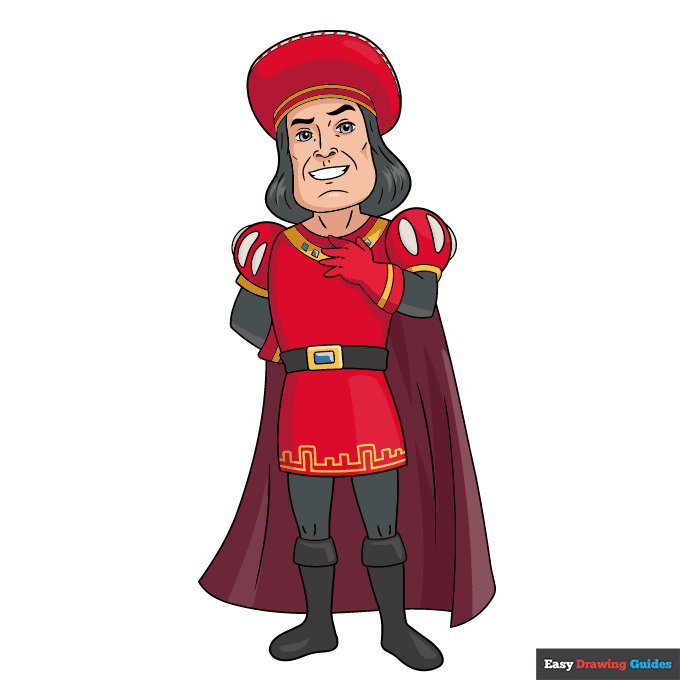
Your Lord Farquaad from Shrek outline is now complete. Color your character. Farquaad has black hair and usually wears red.
Watch 'How to Draw Lord Farquaad from Shrek' Video Tutorial
Click HERE to save the tutorial to Pinterest!
Learn More About The Lord Farquaad from Shrek Drawing
Don't think little of him! You can learn how to draw Lord Farquaad from Shrek with the help of this easy, step-by-step cartoon character drawing guide.
Lord Farquaad was the ruler of the "perfect town" of Duloc. Since fairy tale "things" didn't fit his ideals, he had them hunted down and evicted.
One of them was the Gingerbread Man. You can recreate the scene with this gingerbread man drawing.
Eventually, the ogre Shrek stood up to Farquaad. Bring them face to face with this Shrek drawing. In the end, Farquaad was devoured by a vengeful dragon like the one in this dragon drawing guide.
Lord Farquaad from Shrek Drawing Tutorial - Easy & Fun Printable Pages
Join now and get immediate access to thousands of printable drawing instruction and practice pages!
Learn how to get access to thousands of printable pages!

MEMBER TROUBLESHOOTING
Still seeing ads or not being able to download the PDF?
First, check that you're logged in. You can log in on the member login page.
If you're still not able to download the PDF, the likely solution is to reload the page.
You can do this by clicking the browser reload button.
It is a circular arrow-shaped icon at the top of the browser window, typically found in the upper-left side (you can also use keyboard shortcuts: Ctrl+R on PC and Command+R on Mac).